

Visual Hard Drive Storage Analyzer
Discover exactly where your gigabytes are hiding. High-speed NTFS Master File Table (MFT) indexing generates visual interactive disk treemaps, exposing forgotten video renders, bulky installer archives, and duplicate downloads.
Scan a 1TB NVMe Drive in Under 5 Seconds
Traditional disk tools crawl through every folder one-by-one, causing prolonged disk thrashing. ByteShield reads directly from the Windows Master File Table (MFT), mapping over 1,000,000 files in seconds to reveal where your disk space is being consumed.
FSCTL_GET_NTFS_VOLUME_DATA$MFT (Master File Table) • Direct Cluster ParsingCrypto::SHA256 • Block Verification
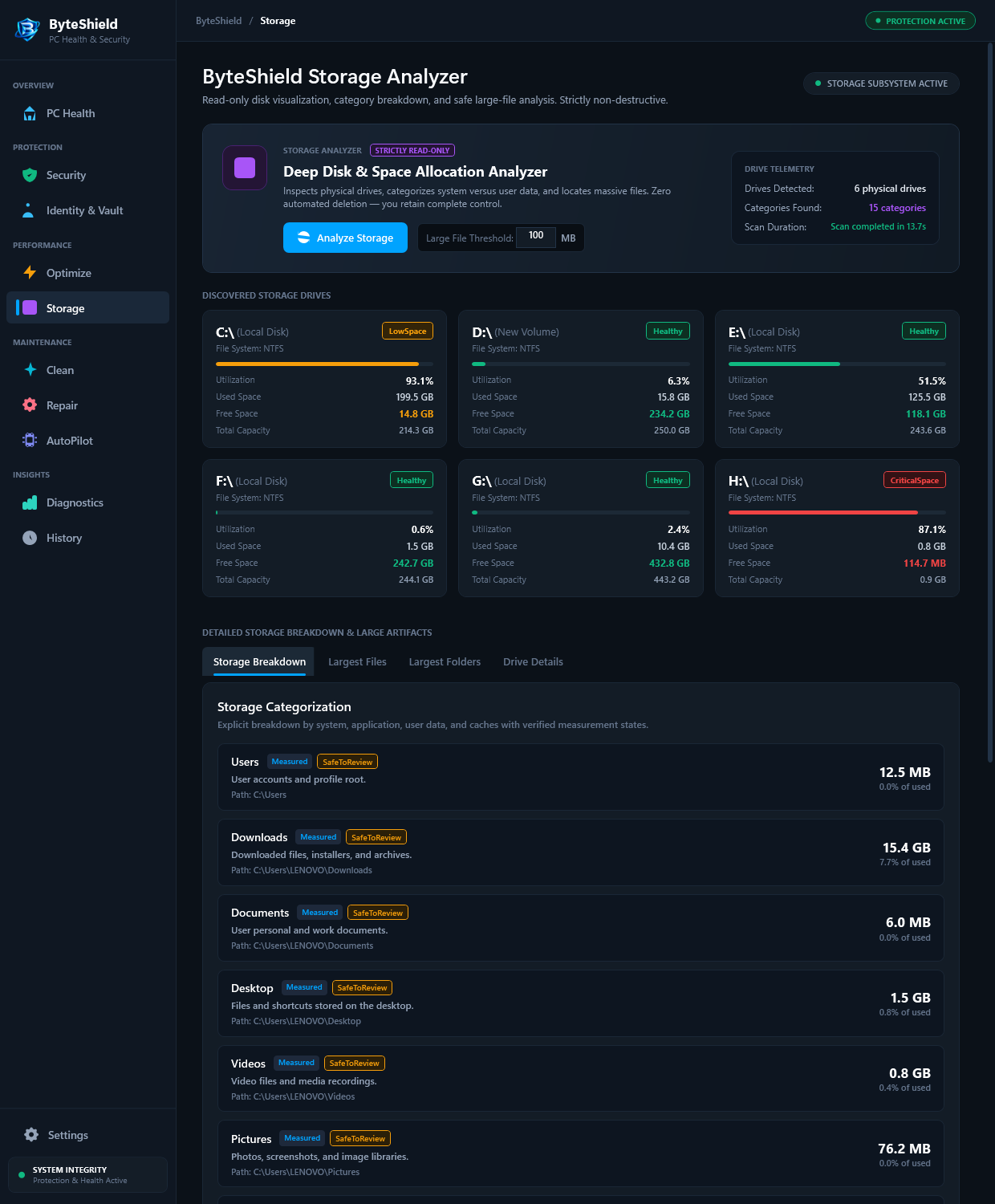
Near-instant indexing via direct Master File Table reads
High-concurrency C++ multi-threaded file parser
Byte-exact matching ensures zero false deletions
Interactive zoomable rings and hierarchical folder lists
Find Hidden Storage Hogs Instantly
No more manual digging through nested AppData and Download folders. ByteShield visualizes drive consumption with pinpoint clarity.
Interactive Sunburst Treemap
Click directly into nested folder rings to zoom in on storage hotspots. Identify which games, project archives, or virtual disk images are filling your drives.
Large File Hunter (> 1 GB)
Instantly filters files across all attached volumes by size. Surface orphaned ISO disc images, forgotten 4K shadowplay recordings, and legacy backups in seconds.
Byte-by-Byte Duplicate Finder
Compares files by cryptographic SHA-256 checksums rather than just filenames. Safely identify true duplicate documents, audio tracks, and archives.
How to Reclaim 50GB+ with Storage Analyzer
A visual 4-step workflow to clean up complex drive hierarchies.
Select Volume
Select any internal NVMe, SATA SSD, external USB hard drive, or microSD card formatted in NTFS, exFAT, or FAT32.
Instant Visual Treemap
ByteShield parses the Master File Table in seconds, rendering a color-coded interactive sunburst treemap of drive usage.
Isolate Bulky Folders
Click directly on large segments to zoom in and inspect orphaned game files, raw video renders, or duplicate zip archives.
Safe Deletion or Archive
Delete unwanted large files directly or move them to external storage, restoring free space and SSD wear-leveling health.
Frequently Asked Storage Analyzer Questions
Answers to key questions regarding MFT indexing, duplicate safety, and external drive support.
On NTFS formatted volumes, ByteShield reads directly from the Windows Master File Table (MFT) cluster using native Windows file system control codes. Rather than recursively opening millions of folders, it parses the metadata index directly, eliminating disk thrashing.
Yes. ByteShield supports all local and removable storage devices formatted in NTFS, exFAT, and FAT32, including external backup drives and USB flash storage.
ByteShield uses a two-stage verification algorithm. First, it groups files by exact byte size. Second, for files with identical sizes, it calculates cryptographic SHA-256 binary checksums. Two files are only flagged as duplicates if their binary hashes match 100%, even if their filenames are completely different.
Yes. ByteShield exposes hidden system items such as the Windows hibernation file (hiberfil.sys), pagefile (pagefile.sys), and system restore shadow copies, clearly marking them with warning badges so you understand their purpose before modifying system settings.
By default, yes. Files deleted from the Storage Analyzer are moved safely to the Windows Recycle Bin so you can recover them if needed. You can also hold Shift or select "Permanent Shred" in settings to bypass the Recycle Bin.
When an SSD is over 90% full, the internal NAND controller must constantly erase and rewrite entire memory blocks to store new data (write amplification). Maintaining at least 15-20% free space ensures peak read/write speeds and extends the physical lifespan of your drive.
Reclaim Your Hard Drive Space in Seconds
Download the free 7-day trial of ByteShield and visualize your storage with an interactive disk treemap.